Purchase Data Tokens on the myHughesnet (Mobile) app

Purchase Data Tokens on the myHughesnet (Mobile) app

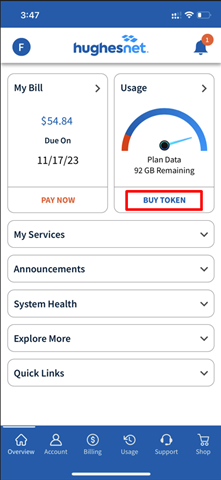
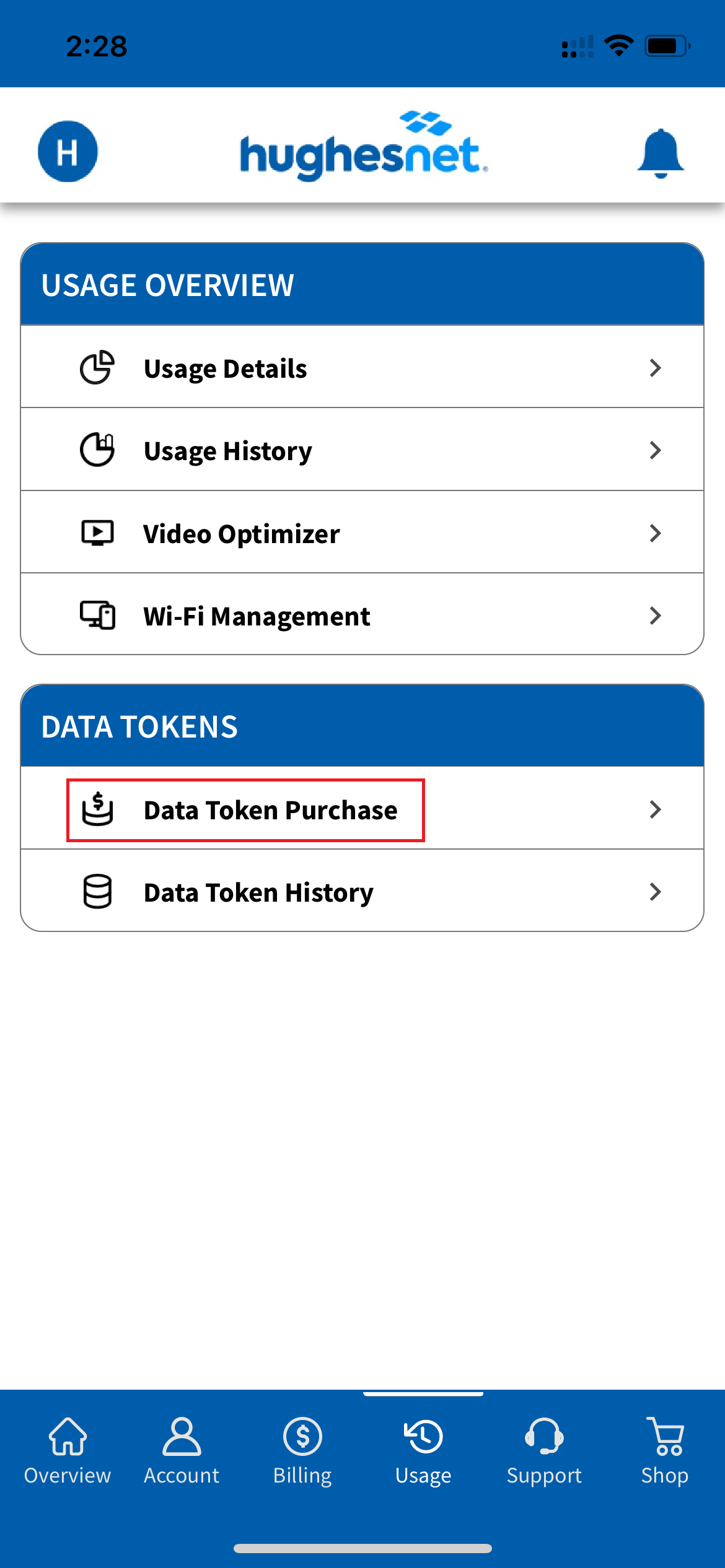
From the home screen (Overview page) of the app, click on Buy Token in the Usage panel.

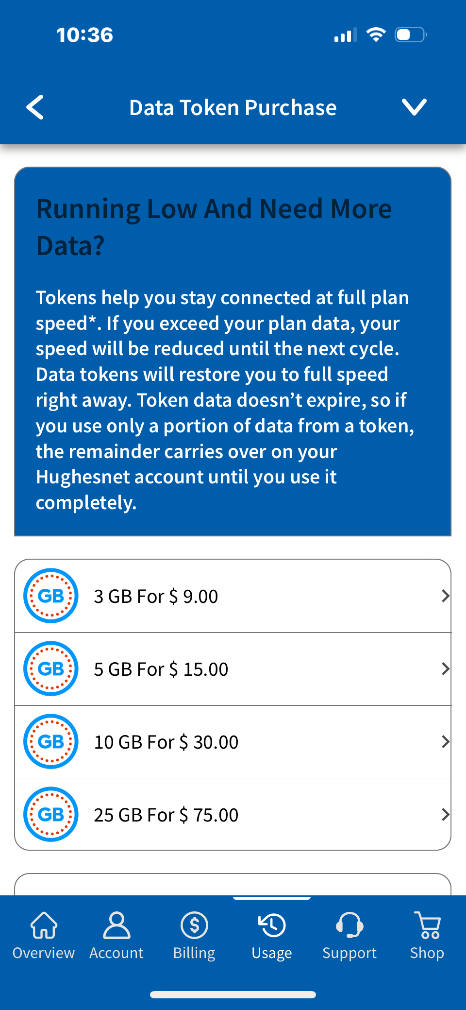
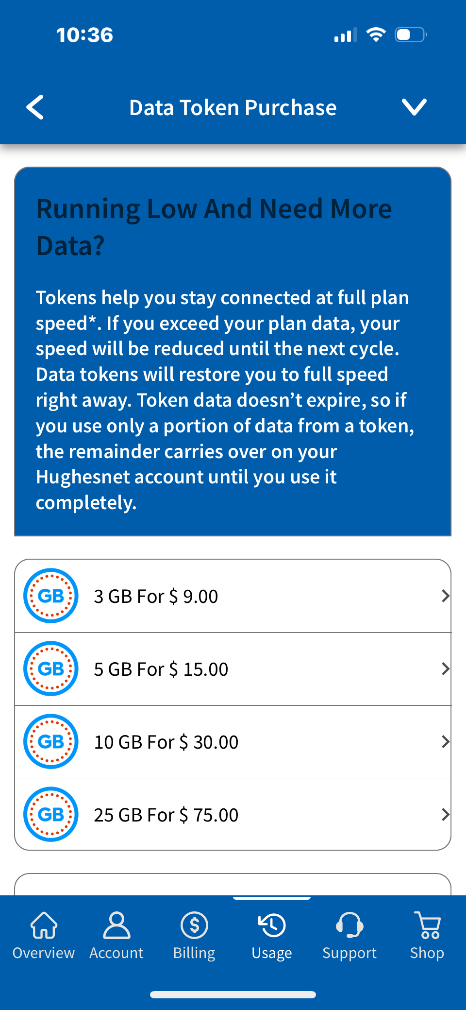
Choose the denomination you wish to purchase. You will be asked to confirm your purchase.

Alterinatively, you can click on the Usage tab on the bottom of the screen then click on Data Token Purchase.

Click on the token denomination you wish to purchase, and confirm to continue.

What Countries are Included in the Hughesnet Voice International Calling Plans?

This helpful list shows all of the countries included in the Hughesnet® Voice International Calling Plan, along with their country code prefix.

Hughesnet Voice International Calling Plans – List of Countries

(m) next to a country denotes that mobile calling is allowed to that country.

Country IDD Code Prefix
Andorra 011 376
Argentina 011 54
Australia 011 61
Austria 011 43
Belgium 011 32
Bermuda 1
Brazil 011 55
Brunei (m) 011 673
Bulgaria 011 359
China (m) 011 86
Colombia 011 57
Croatia 011 385
Cyprus 011 357
Czech Republic 011 420
Denmark 011 45
Dominican Republic 1
Estonia 011 372
Finland 011 358
France 011 33
Germany 011 49
Greece 011 30
Guadeloupe 011 590
Guam (m) 1
Hong Kong (m) 011 852
Hungary 011 36
Iceland 011 354
India (m) 011 91
Ireland 011 353
Israel 011 972
Italy 011 39
Japan 011 81
Luxembourg 011 352
Malaysia (m) 011 60
Malta 011 356
Mexico 011 52
Netherlands 011 31
New Zealand 011 64
Norway 011 47
Panama 011 507
Peru 011 51
Poland 011 48
Portugal 011 351
Romania 011 40
Russia 011 7
Saipan (m) 1
San Marino 011 378
Singapore (m) 011 65
Slovakia 011 421
Slovenia 011 386
South Africa 011 27
South Korea (m) 011 82
Spain 011 34
Sweden 011 46
Switzerland 011 41
Taiwan 011 886
Thailand (m) 011 66
Turkey 011 90
United Kingdom 011 44
Venezuela 011 58
Zambia 011 260

View online list of countries

Dialing Instructions

Dial the International Direct Dialing (IDD) number. Countries have different numbers, or may have more than one IDD, depending on the carrier or type of service.

Dial the Country Code. In some cases, the country code is shared among countries. For example, the United States, Canada, and much of the Caribbean and Guam use country code 1.

Dial the city/area code (if any) for the number you are dialing. Smaller countries may not use city codes or area codes, while larger countries do.

Dial the phone number you are calling.

Example

IDD COUNTRY CODE CITY CODE PHONE NUMBER
011 61

Does Hughesnet Work with My Wireless Thermostat, Security Systems and Lighting?

Hughesnet® does support remote home devices that allow you to control your lights and thermostats (such as Nest and Philips Hue) from your smart phones. Security devices that allow you to watch video in the cloud are also supported. Devices that require a static or routable IP address will not work. Reference the device manual to learn if a static IP address is required for the product.

What is SmartTechnologies?

A feature, previously known as SmartBrowsing, that optimizes your Web experience.

Hughesnet® automatically compresses and optimizes web content with built-in SmartTechnologies™, to make Web pages load faster while using less of your data.

The feature, previously known as SmartBrowsing was available in limited areas.

How do I Schedule/delay Windows Updates?

You can delay automatic Windows updates from installing on your PC until the Bonus Zone hours to maximize your Service Plan Data.

Why does Windows update automatically?

With automatic updating, Windows automatically checks for the latest updates for your computer. You don’t have to search for updates online or worry that critical fixes for Windows might be missing from your computer.

You can fully utilize all of your Hughesnet® data by rescheduling your updates to occur during the Bonus Zone (formerly Bonus Bytes) of 8 PM and 2 AM.

How do I schedule Windows Updates?

On Windows 11:

  1. Select Start  > Settings  > Windows Update .
  2. Select the amount of time you’d like to pause for.

Note: After the pause limit is reached, you’ll need to install the latest updates before you can pause updates again.

Your device will need to restart to finish installing updates. If you’re asked to restart your device while you’re busy using it, you can schedule the restart for a more convenient time:

  1. Select Start  > Settings  > Windows Update . 
  2. Select Schedule the restart and choose a time that’s convenient for you.

Note: You can set active hours to make sure your device only restarts for updates when you’re not using your PC. Get updates when you’re away from your PC with active hours in Windows

On Windows 10:

  1. Select Start  > Settings  > Update & Security  > Windows Update .
  2. Select either Pause updates for 7 days or Advanced options. Then, in the Pause updates section, select the drop-down menu and specify a date for updates to resume.

Note: After the pause limit is reached, you’ll need to install the latest updates before you can pause updates again.

Your device will need to restart to finish installing updates. If you’re asked to restart your device while you’re busy using it, you can schedule the restart for a more convenient time:

  1. Select Start  > Settings  > Update & Security  > Windows Update . 
  2. Select Schedule the restart and choose a time that’s convenient for you.

Note: You can set active hours to make sure your device only restarts for updates when you’re not using your PC. Get updates when you’re away from your PC with active hours in Windows

For more information, visit Microsoft Support by clicking here.